
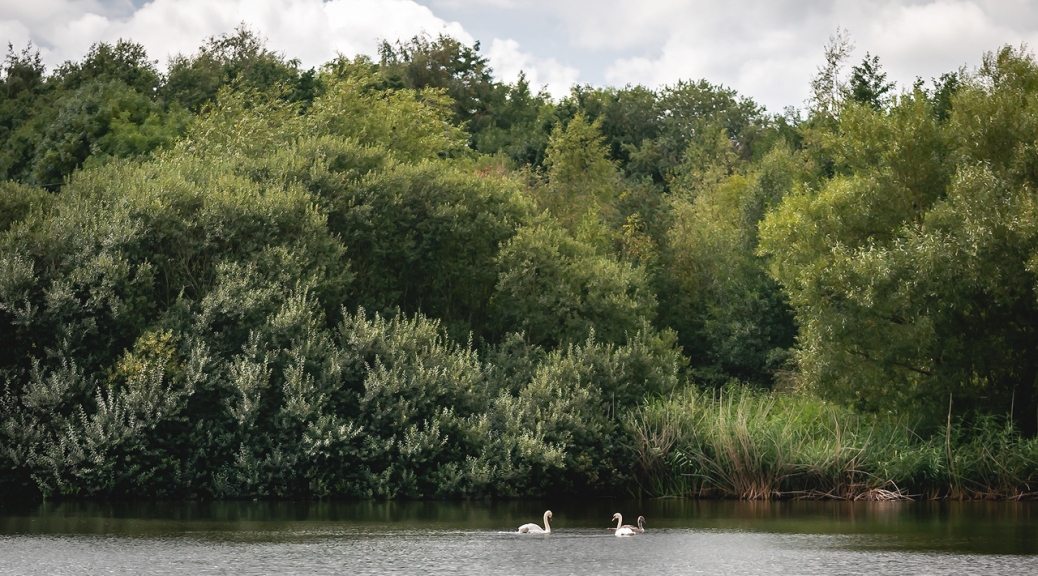
An early morning (8:30) walk to a nearby lake. 🙂
















An early morning (8:30) walk to a nearby lake. 🙂
Recently we had a requirement to check who had a certain privilege across all of our Dynamics environments. The privilege in question was ‘Delete Change History‘ for Audit History records.
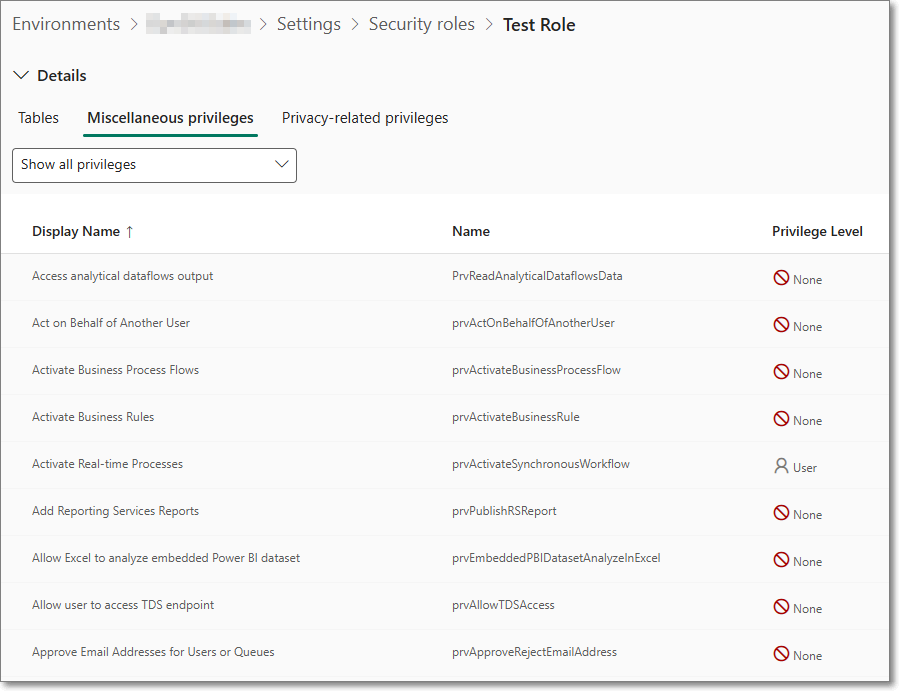
The ‘Delete Change History‘ role is found under Miscellaneous privileges, and the internal name is prvDeleteRecordChangeHistory. A full list of these can also be found on Microsoft Learn.
We need to find all of the Security Roles where this was enabled, and then the users who had this role. The interface to roles and privileges works but does not allow the searching we require.
SQL 4 CDS comes to the rescue yet again. I won’t go over the install procedure, but basically go to XrmToolBox, then download the SQL 4 CDS plugin.
Once it’s installed and you’ve connected to your Dynamics environment you can query the appropriate tables. There are several tables that hold the required information:
• systemuser
• role
• privilege
• roleprivileges
See examples below
Show all the users who have a specific privelege
SELECT
   systemuser.fullname AS UserName,
   systemuser.domainname,
   role.name AS RoleName,
   privilege.name AS PrivilegeName,
   privilege.accessright
FROM
   systemuserroles
JOIN
   systemuser ON systemuserroles.systemuserid = systemuser.systemuserid
JOIN
   role ON systemuserroles.roleid = role.roleid
JOIN
   roleprivileges ON role.roleid = roleprivileges.roleid
JOIN
   privilege ON roleprivileges.privilegeid = privilege.privilegeid
WHERE
   privilege.name = 'prvDeleteRecordChangeHistory'
ORDER BY
   systemuser.fullname, role.name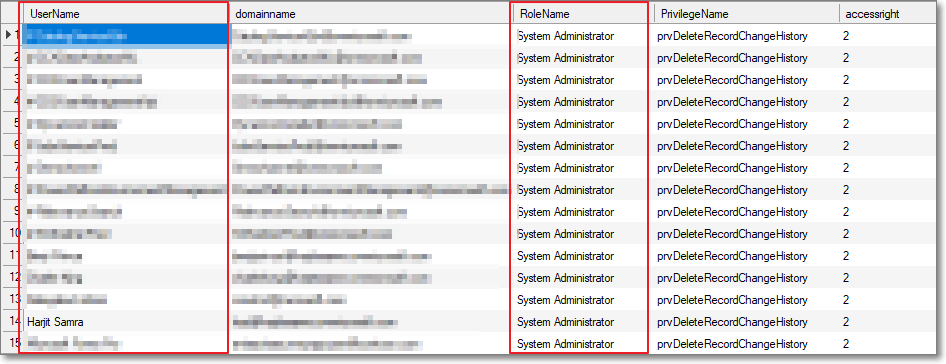
Users who have System Administrator role
SELECT
   systemuser.fullname AS UserName,
   systemuser.domainname,
   role.name AS RoleName,
   accessmodename,*
FROM
   systemuserroles
JOIN
   systemuser ON systemuserroles.systemuserid = systemuser.systemuserid
JOIN
   role ON systemuserroles.roleid = role.roleid
WHERE
   role.name = 'System Administrator' and azurestatename = 'Exists' and accessmodename <> 'Non-interactive' and isdisabled=0
ORDER BY
   systemuser.fullname, role.name
Hope this helps. 🙂
The Microsoft Dynamics Advanced Settings pages have been around for as long as I can remember – probably since Dynamics CRM 2011.

It’s been marked as deprecated for a number of years – but not totally gone yet. It used to be accessible from the top-right cog, and then ‘Advanced Settings’, but since Release Wave 2 this now takes you to the Power Platform Environment Settings

The issue is that some functionality isn’t available in the updated interface.
A prime example I found recently, is that viewing Processes in a Solution differs from the old and new interface.
The new interface (make.powerapps.com) shows Processes as below:
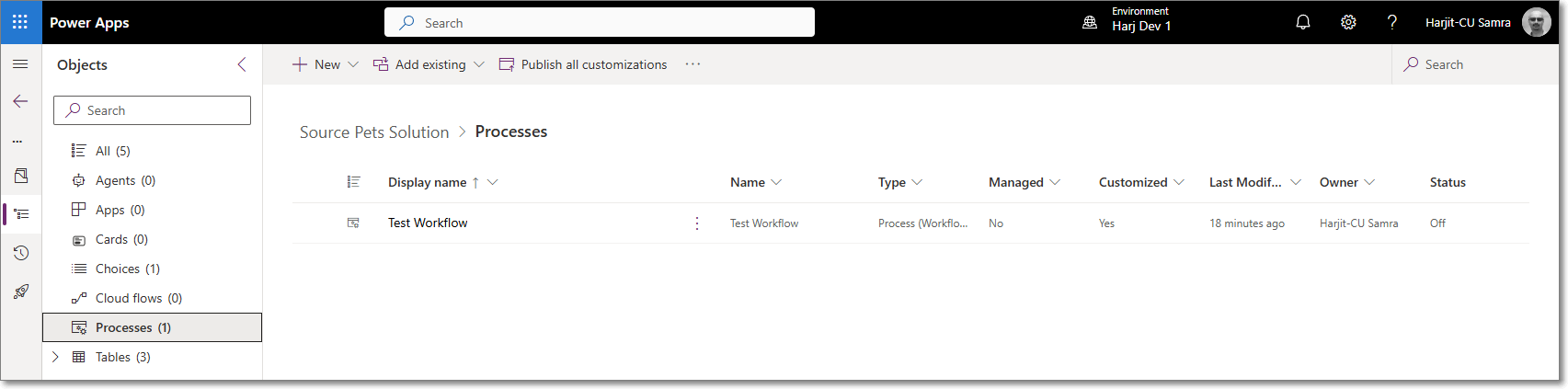
Which looks fine until you have many workflows and want to see the Primary Entity of a workflow.
See the older interface:

So why has this been removed from the new interface. Presumably there’s a reason for this.
Anyway, for now, we can still access the old interface by using the below URL
YOURORG.crm4.dynamics.com/main.aspx?settingsonly=true
That’ all for now 😀
Table of Contents:
Recently, we wanted to carry out a Dynamics license clean-up exercise, and remove any users who had not used the system for a few months. We wanted to create an export with enabled users, and when they last logged in to Dynamics.
Data regarding the users last login date is only stored if “Log Access” is enabled. I recommend switching this on for all of your environments.
Go to Power Platform Admin Center
Click on the environment

Under Auditing, click on Manage

Enabled ‘Start Auditing’ and ‘Log Access’

Click Save
If you have less than 500 users you can use the excellent tool ‘Get Last Login for Users‘, which runs in the also excellent XrmToolBox.
It is very easy to use:
If, as in my case, you have more than 500 users you can export data to excel, and manipulate the data to show all users, and when they last logged in.

Paste in the below SQL, which returns all active interactive users, excluding internal user accounts.
Press F5 to execute the query.
SELECT systemuserid, domainname, fullname FROM systemuser
WHERE isdisabled = 0 AND accessmode = 0
Select the results grid, press CTRL + A to select all, then right-click on the grid, and click ‘Copy‘

In the spreadsheet, in the tab ‘Active Users‘ paste the results into cell A2

Currently the column ‘Last Logged In” will show as #N/A. This is because we have not yet completed the process.
Select all of column E by click on the header

Press Ctrl + C to copy these values
In XrmToolBox clear the current SQL, and then click in the SQL area, and then press CTRL + V to paste in the new SQL.
Press F5 to execute the query. This may take several minutes to run.
You should see similar to below:
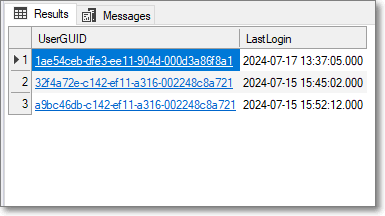
Select the results grid, press CTRL + A to select all, then right-click on the grid, and click ‘Copy‘.
In the spreadsheet, in the tab ‘Login SQL Output‘ paste the results into cell A2
In the spreadsheet, the tab ‘Active Users‘ will now show the users, and when they last logged in:

I hope you find this useful 😊
I’ve recently starting using Notion for some of my digital notes. As a long time Evernote user I find the notes in Notion easier to visualise as they are stored in a hierarchical format. Evernote uses a tagging system which is more flexible but can be quite confusing.
One thing I don’t like about Notion is that the colour options for highlighting text only have pastel/neutral colours
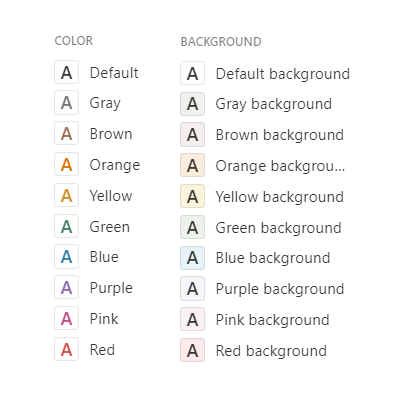
Last year Trello changed their colours from “normal” colours to more neutral colours – which caused a bit of backlash with their users.
Anyway, in Notion there is a way to add a highlight with any colour, using the equation feature. The process is, to add the below text first
\colorbox{#55FF55}{\color{#000000} \text{TEXT} }Then right click on it, and choose “Create Equation”
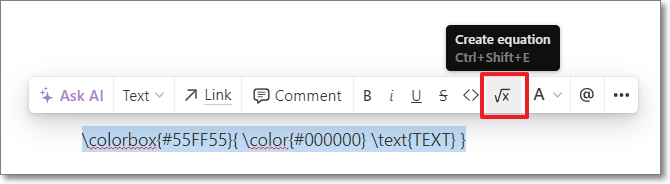
In the next dialog, edit the TEXT to whatever you want, then select Done
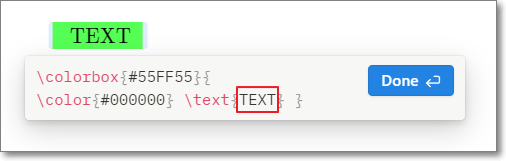
And there you have it – nicely visible highlighted text.
You can edit the value 55FF55 after \colorbox to get different colours. Some options are:
Yellow – FFFF00
Red – FFAAAA
Blue – 88FFFF
Also, you can choose your own colour using htmlcolourcodes.com. Just select your colour and copy the HEX value.
The downside with this method is that the whole line is highlighted, so you can’t have mixed text and highlighted text on the same line.
I think Notion will be updated at some point to include brighter highlight colours, but this seems to be the only option for now.
Photo by Robert Katzki on Unsplash
There is a lake a short walk from where I live, which has an abundance of wildlife.
Theses are some photos I took there in May 2023.

















We had booked to go to Kefalonia with TUI in May 2020, but that didn’t go ahead, so we rebooked and went in June this year. We stayed at the Apollonion Resort & Spa, which was a very luxurious hotel but ultimately a bit far out from the main island than we would have liked.
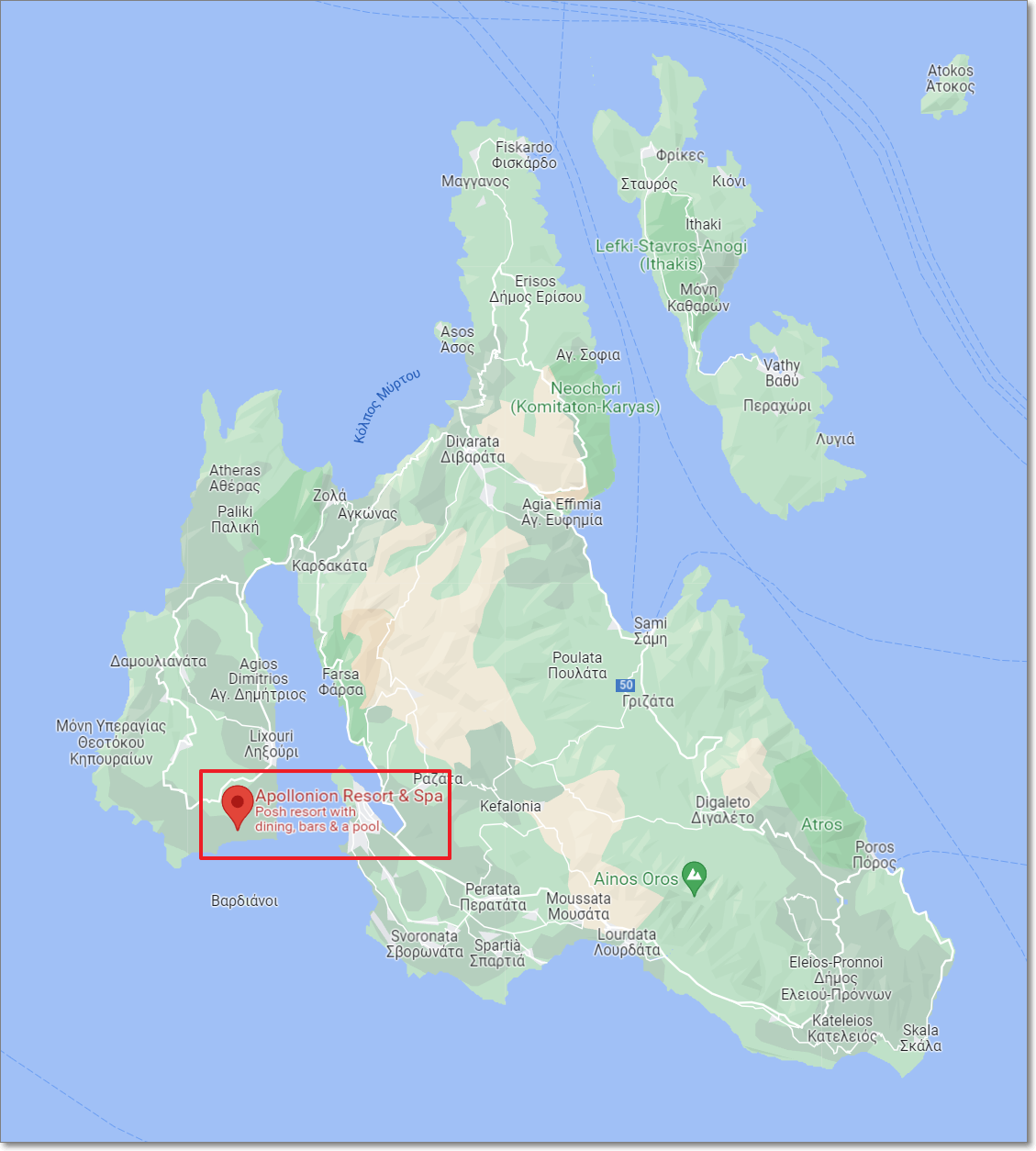
There is a car/person ferry which goes every 30 mins from Lixouri to Argostoli which saves the 30-45 min drive around the coast





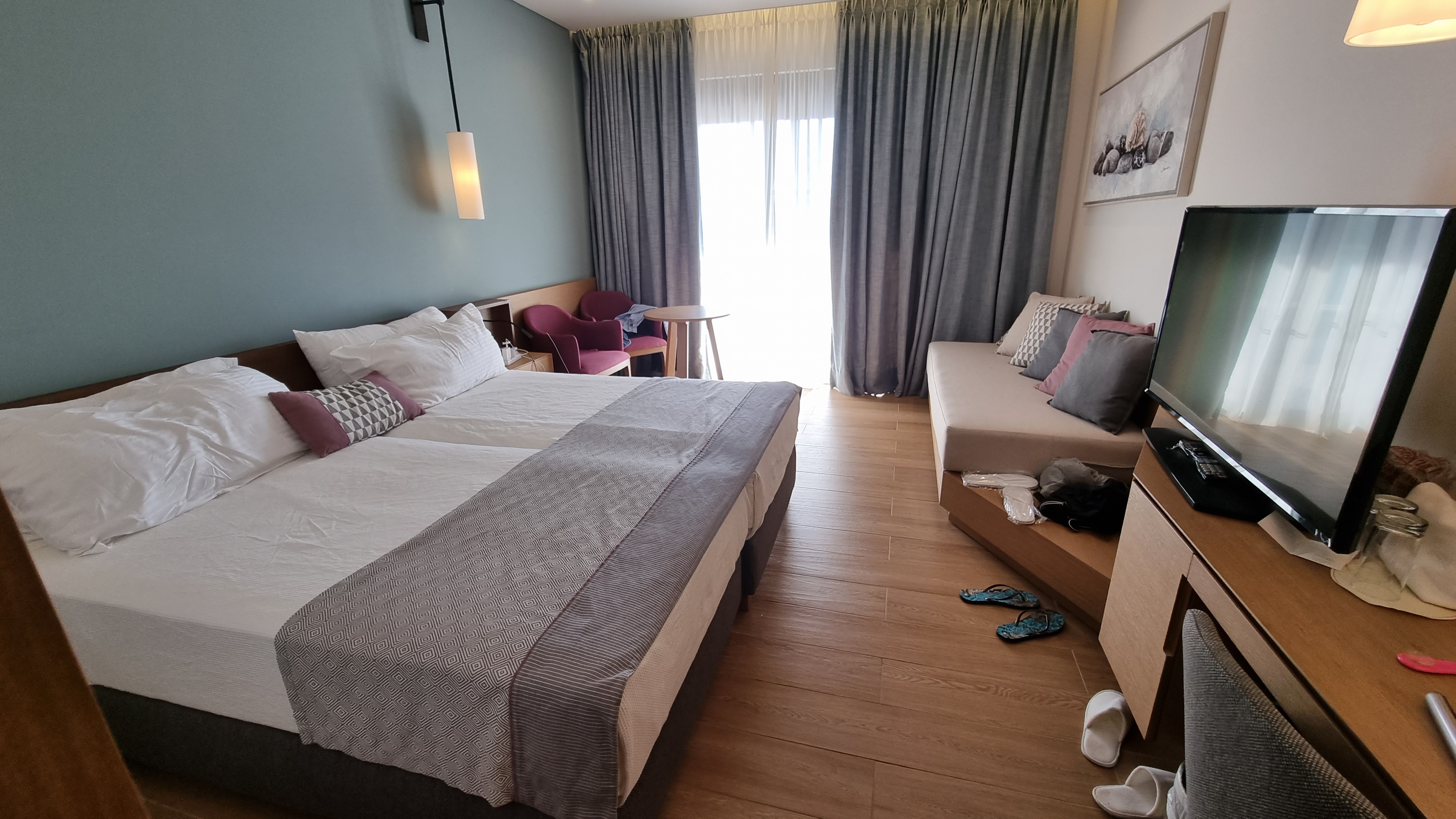
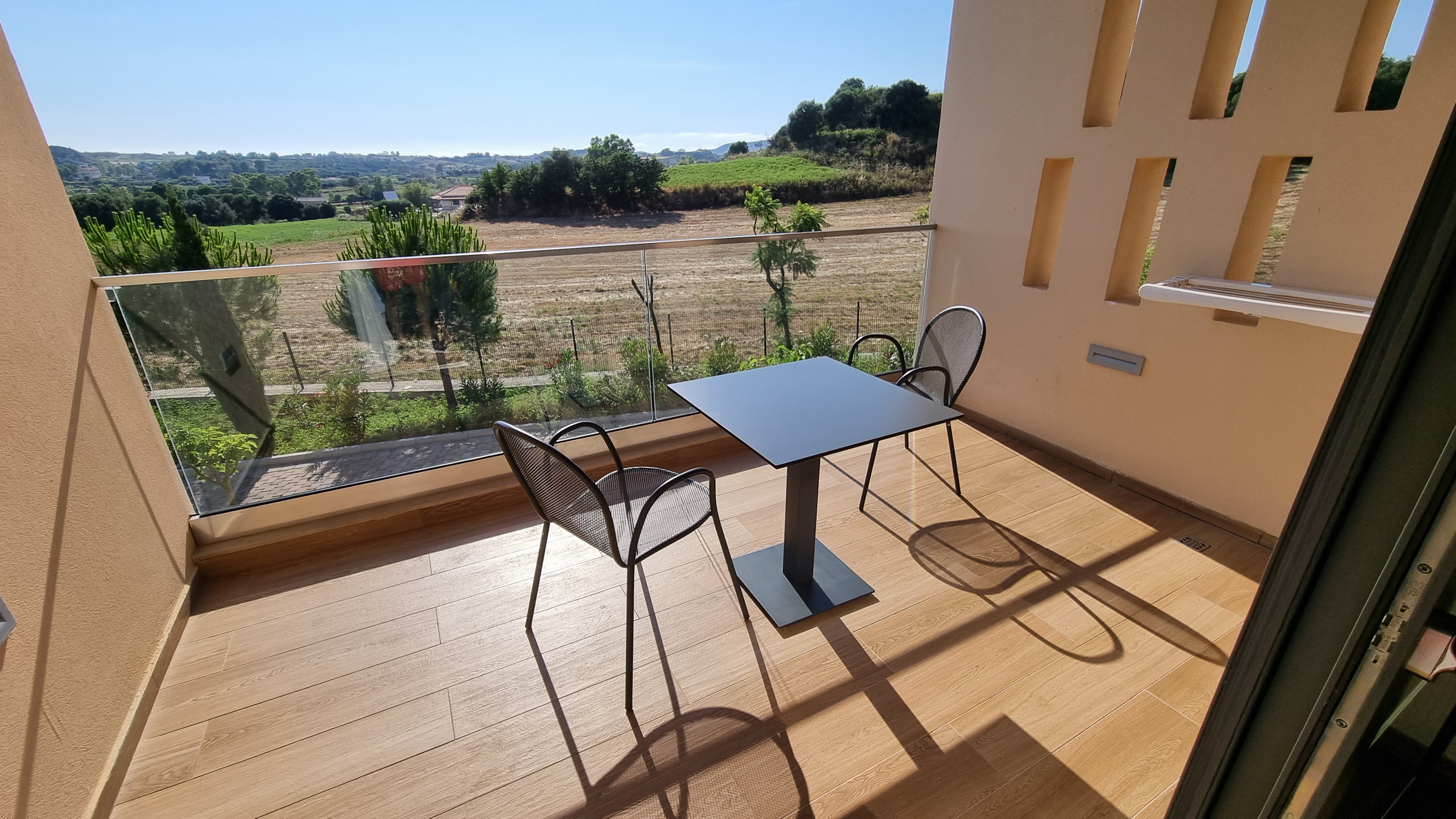
The hotel itself was very nice – parking outside our front door, and a very quiet balcony.




There seems to be a shortage of hire cars in many places, and there was no exception here. I did find someone through Facebook who provide excellent service – https://www.facebook.com/acerentacarkefalonia.

There are a large number of beaches to explore on Kefalonia – here are a few of them:





Of course there was the obligatory 1 day scooter rental (rented from http://motoround-kefalonia.gr/en/). There are some excellent remote spots to see around the island.

This is the route I took. I started from Argostoli, headed South, past Skala, then back up the East Coast, before heading South West back to Argosoli.
Finally, a selection of photos from the week.











THE FINISHED APP
An animated 3D Rubik’s Cube in Power Apps.
The fully working Power App app can be download from GitHub.
BACKGROUND
Following on from my previous post on creating a Rubik’s Cube emulator in Power Apps, the next logical step was to have the cube sides animate on rotate. There is a draggable 3D cube in this website – which renders in real-time, but I don’t think this is yet within the realms of Power Apps.
I had the idea of rendering each frame of a side rotating and then switching these frames within Power Apps resulting in the animation. The frame would also need to reflect the colours of the pieces, which would be possible using the same method as for the static cube, i.e., replacing the polygon colours in the SVG with the appropriate piece colour stored in the Collection.
Also, as the sides are rotated the notations are stored in a collection, and then an ‘Unscramble’ button will replay all the moves in reverse resulting in a completed Rubik’s Cube.
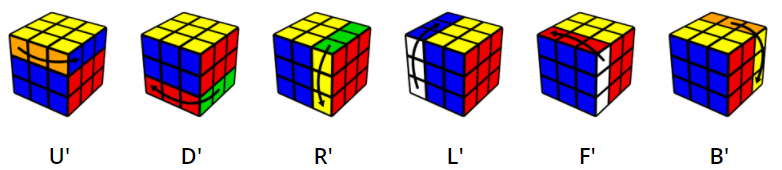
The standard notations for Rubik’s Cube movements are taken from this page.

CREATING THE FRAMES
After a bit of searching online – Blender seemed to offer an SVG export feature as an add-on. Downloading and using Blender was a bit alien to me as I’m accustomed to Autodesk Maya and 3D Studio Max. So instead, a trial of Autodesk Maya was installed, and on looking at the render engines available I found that there is one called Maya Vector renderer which is able to export to SVGs – this sounded perfect.
Next, I found a YouTube tutorial and created the Rubik’s Cube in Maya, even though it’s not a particularly complex shape to model. In terms of the colouring of the pieces they each have to be unique so that the colour code can be replaced in Power Apps. This was achieved by using a fixed colour for each side and then lowering the saturation on each piece, so that none of the colours would be repeated. This is the completed model rendered in Maya Vector, and Arnold (the built-in Maya ray tracing renderer)
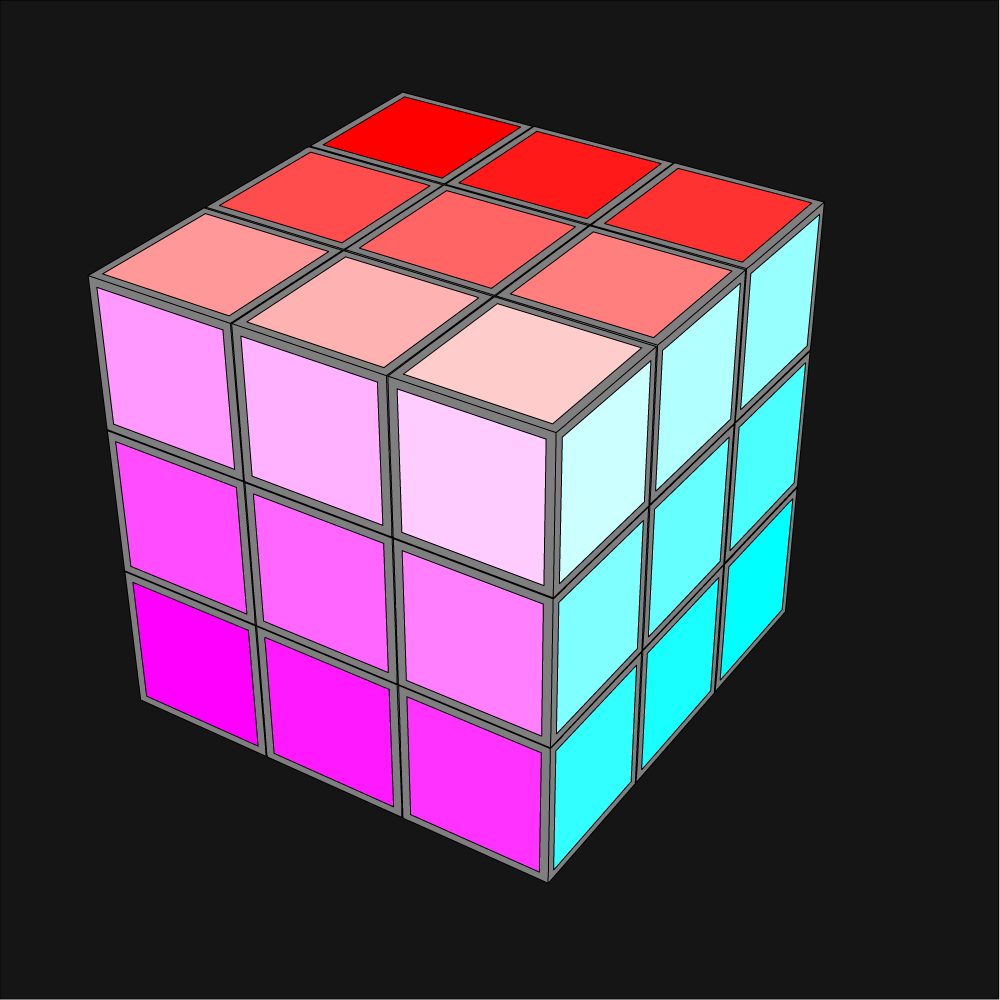
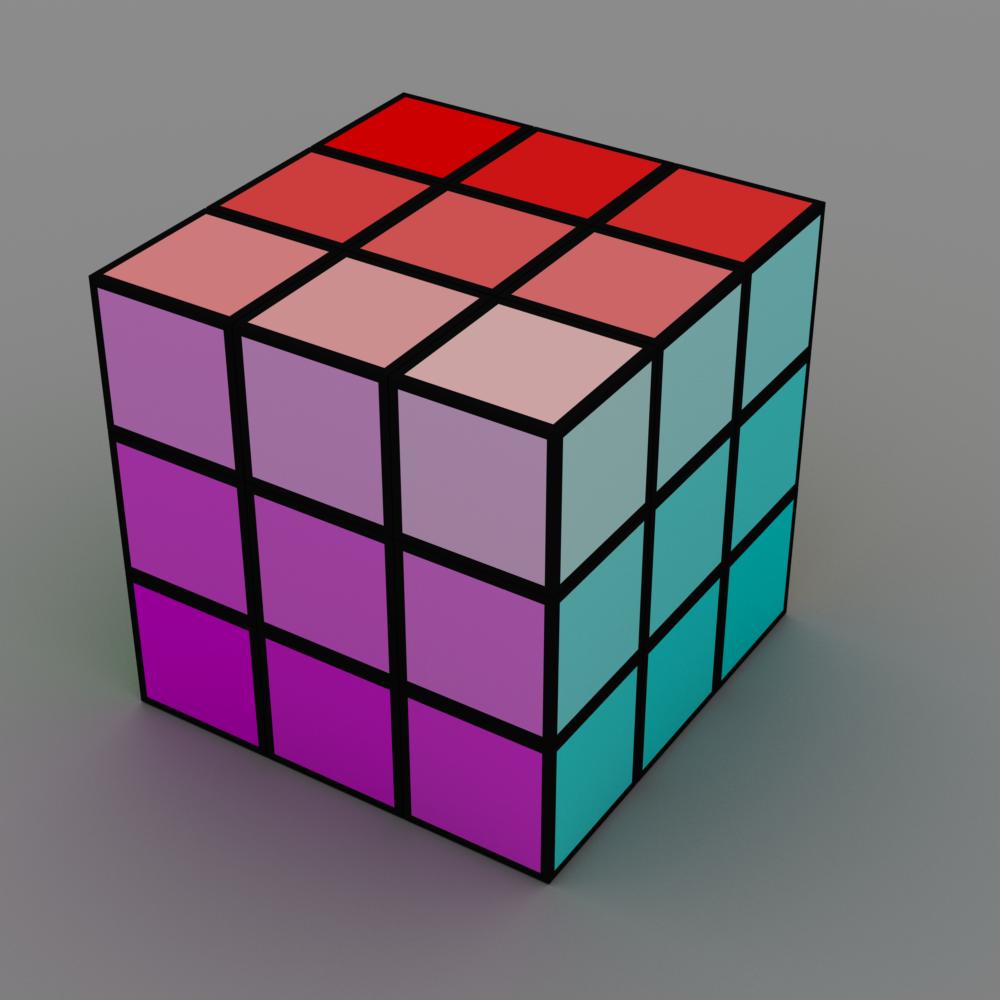
I decided that 5 frames in the animation steps would be sufficient as this would result in 3 frames between the start and end. Any less wouldn’t look very realistic, and using more might slow down the animation as Power Apps would have to render all of the frames behind the scenes even if they’re not visible.
I won’t go into detail of the process of animating each side move in Autodesk Maya. As a summary the steps are:
The SVGs created from Maya weren’t very well formatted, or easy to read. Importing them into Adobe Illustrator and re-exporting them resulting in them being half the file size, and also the SVG colour “styles” being created at the top of the file – which makes things a lot simpler.
The next step is to replace the appropriate piece colour in the SVG file with the Power Apps lookup code for the corresponding side and piece. Through a process of importing the SVG into Power Apps and then changing each style colour to black I was able to create the below spreadsheet with the piece colour and its matching Power Apps code:
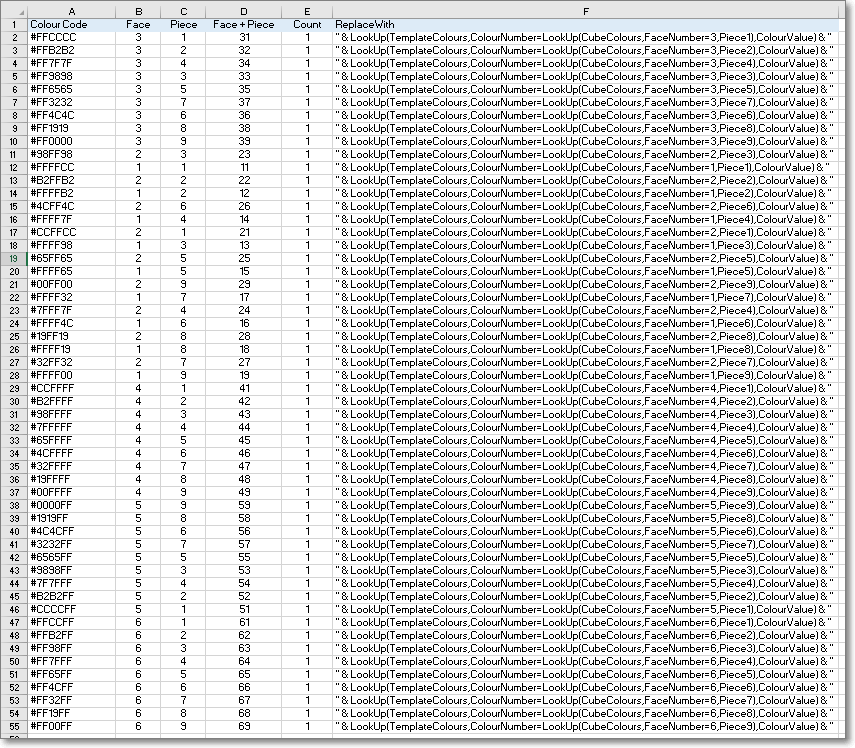
The process of searching and replacing the colour codes with the Power Apps codes initially wasn’t straightforward. This page describes how to perform multiple text replacements in in Excel using VBA code.
The final steps for preparing the Maya SVGs for Power Apps are:
POWER APPS
There is not much in the App that is overly complex – I’ll cover anything that might require an explanation on how it works.
Several variables are used in the side animation and the cube unscramble routines. These variables values can be hidden or displayed using the Debug toggle control:
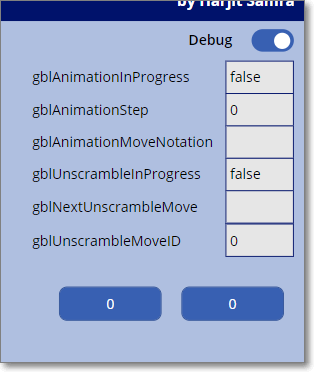
Two timers are used – the first to increment the variable controlling the animation frame displayed, and the second controlling the Unscramble routine.
On Version 1 of the app I’d forgotten to rotate the colours on the actual side of the cube which is being rotated. This has now been fixed.
Image controls including SVG for the Image properties were added for all of the frames of the side move animations. The images Visibility is set by the several variables indicating if an Animation is in progress, the move notation, and the frame of the animation.
FINAL THOUGHTS
It would be great to be able to render the Rubik’s cube in real time in 3D. This may be possible by creating an SVG on the fly to draw lines and polygons. I’m not sure if this could be done in Power Apps but I like a challenge 😊.
Photo by Fakurian Design on Unsplash
BACKGROUND
Is it possible to create a Rubiks Cuber emulator in Power Apps?
Recently a Twitter post from Mr Dang piqued my interest. It was a retweet of a tweet which showed an Excel spreadsheet with a 3D Rubiks Cube which could be rotated by using buttons around the cube. I had been looking for a new idea for a new Power Apps project and this looked ideal.
When I was about 10, I became interested in the Rubiks Cube, and spent many hours learning how to solve it in under a minute, and amazed anyone who was willing to watch me do it.
TERMINOLOGY
These are the terms used when referencing the parts of a Rubiks Cube:
Cube – the whole cube.
Face – a single face, or side of the cube.
Piece – a single piece on a face, which can be one of six colours.
APP/CODE
The “code” snippets in this post will be minimal as the full working App is in Github here.
INITIAL THOUGHTS
Ideally, the goal was to create a fully 3D rendered cube which could be rotated, and the sides moved by dragging – as here. I believe this is beyond what Power Apps can do – for now..
I wanted to use as much Power Apps core functionality as I could in the App, to display, store, and move the faces. To store the piece colours the plan was to use Collections but was unsure if the performance would be adequate – turns out it was no issue.
FIRST STEPS CREATING THE APP
Created a ‘Reset Cube’ button and code in the OnSelect to create a Collection to store the 6 faces and 9 piece colours. Also, a gallery to display the Collection data on screen.
// Create new collection and create Face 1
ClearCollect (
	CubeColours,
	{
		FaceNumber: 1,
		Piece1: 1,
		Piece2: 1,
		Piece3: 1,
		Piece4: 1,
		Piece5: 1,
		Piece6: 1,
		Piece7: 1,
		Piece8: 1,
		Piece9: 1
	}
);
// Append Face 2
Collect (
	CubeColours,
	{
		FaceNumber: 2,
		Piece1: 2,
		Piece2: 2,
etc.
Added 9 Text boxes for each of the 3 visible cube sides, and a Lookup in each Text box to show the text value from the Collection:

So far so good – we can see the values of all the pieces, and the 3 cube sides on screen (although not in a very user friendly format).
ADDING COLOUR
A Collection was created to store the colour numbers 1 to 6 with their corresponding HTML colour values. The below code was put into the ‘Reset Cube’ button for ease.
ClearCollect (
    TemplateColours,
    {
        ColourNumber: 1,
        ColourValue: "#00FF00"// Green
    },
    {
        ColourNumber: 2,
        ColourValue: "#FF0000"// Red
    },
    {
        ColourNumber: 3,
        ColourValue: "#FFFFFF"// White
    },
    {
        ColourNumber: 4,
        ColourValue: "#FF8040"// Orange
    },
    {
        ColourNumber: 5,
        ColourValue: "#FFFF00"// Yellow
    },
    {
        ColourNumber: 6,
        ColourValue: "#0000FF"// Blue
    }
);
The cube text boxes Text values were all set to “” (Blank) to clear them, and then the Fill property was changed as below to lookup the correct colour from the Collection:
ColorValue(
    LookUp(
        TemplateColours,
        ColourNumber = LookUp(
            CubeColours,
            FaceNumber = 1,
            Piece1
        ),
        ColourValue
   )
Resulting in coloured squares as below!

Adding the feature to turn the cube sides turned out to be one of the most difficult parts of this App. Once I’d drawn a sketch of the cube on paper it was a lot simpler:

This is the code to rotate the top side anti-clockwise. The code for the rest of the sides are slight variations on this.
// Store 1
Set(TempPiece1,LookUp( CubeColours, FaceNumber = 1, Piece1));
Set(TempPiece2,LookUp( CubeColours, FaceNumber = 1, Piece2));
Set(TempPiece3,LookUp( CubeColours, FaceNumber = 1, Piece3));

// Patch 1 from 4
ClearCollect(TempCubeColours, First(Filter(CubeColours,FaceNumber=4)));
Patch(CubeColours,First(Filter(CubeColours,FaceNumber=1)),
    {Piece1:First(TempCubeColours).Piece1,
        Piece2:First(TempCubeColours).Piece2,
        Piece3:First(TempCubeColours).Piece3});

// Patch 4 from 6
ClearCollect(TempCubeColours, First(Filter(CubeColours,FaceNumber=6)));
Patch(CubeColours,First(Filter(CubeColours,FaceNumber=4)),
    {Piece1:First(TempCubeColours).Piece1,
        Piece2:First(TempCubeColours).Piece2,
        Piece3:First(TempCubeColours).Piece3});

// Patch 6 from 2
ClearCollect(TempCubeColours, First(Filter(CubeColours,FaceNumber=2)));
Patch(CubeColours,First(Filter(CubeColours,FaceNumber=6)),
    {Piece1:First(TempCubeColours).Piece1,
        Piece2:First(TempCubeColours).Piece2,
        Piece3:First(TempCubeColours).Piece3});

// Patch 2 from 1 (Stored)
Patch(CubeColours,First(Filter(CubeColours,FaceNumber=2)),
    {Piece1:TempPiece1,
        Piece2:TempPiece2,
        Piece3:TempPiece3});
So, finally there is a fully working Cube which can be used, although it needs a bit of work to make it 3D.
3D CUBE
Initially I thought this would take a lot of time. There are no polygons in standard controls in Power Apps so consideration was given to each piece being made of one or more SVGs. An SVG is a scalable vector image file. For further information see Wikipedia and Matthew Devaneys blog post.
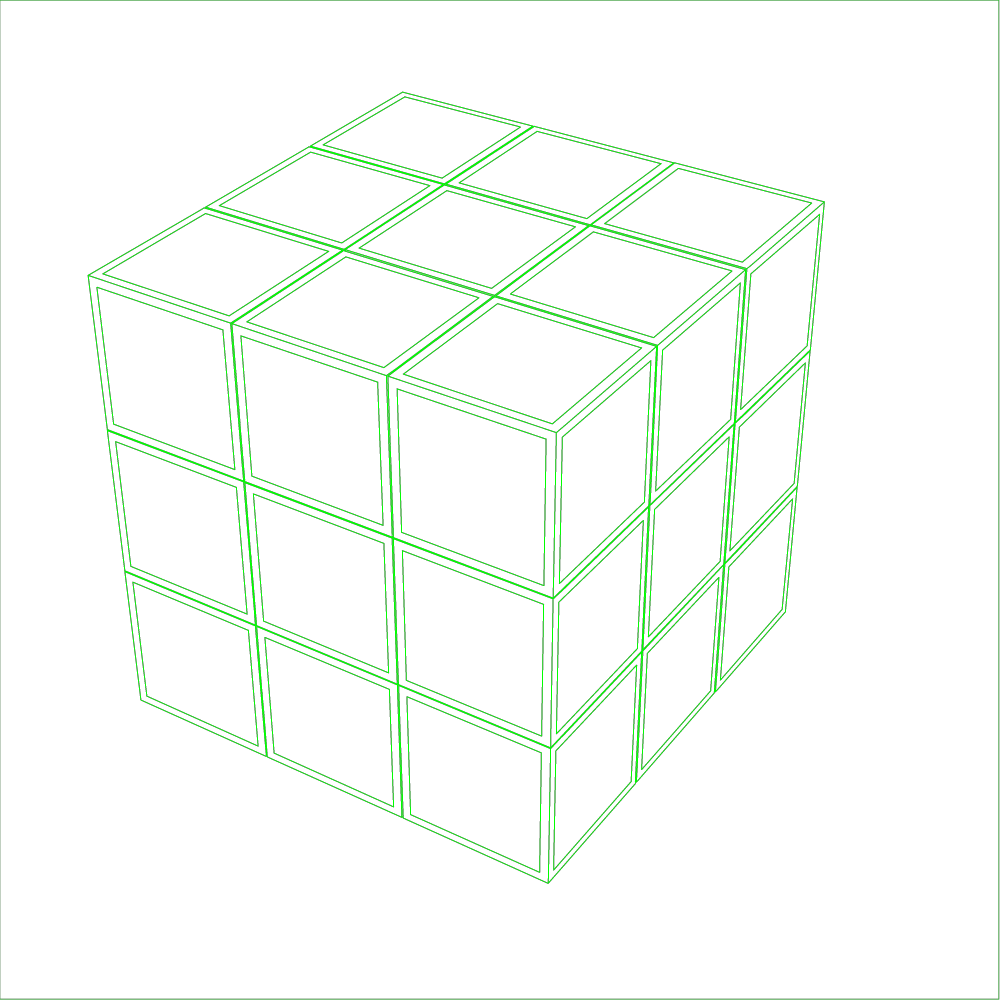
After a bit of searching online I found the perfect answer – a ready made Rubiks Cube in SVG format where I could modify the piece colours using Power Apps code. This is how the original SVG looks:

From here it was quite straightforward to change the SVG string and replace any piece colours using Lookups on the collection. I’m no expert in SVG but was able to work out that each piece polygon is a separate section in the SVG file, and has a corresponding colour value in it – see below.

By changing a colour to yellow I could see where it was on the cube as Power Apps renders SVGs in real time. Then I would simply put the lookup for the piece in the SVG code section – as below in Power Apps:

FINAL STEPS
Once this was complete proper buttons to rotate the cube were created (using SVGs from Bootstrap Icons).
Also a view of the reverse of the cube was created. This was simply a copy of the SVG, using the same technique as above mapping each piece in the SVG to it’s corresponding piece on the reverse of the cube. It took a bit of thinking to view the cube in reverse, and I ended up using a Rubiks Cube box and writing the piece numbers on it.


THE FINISHED APP
Here is the completed app in action:
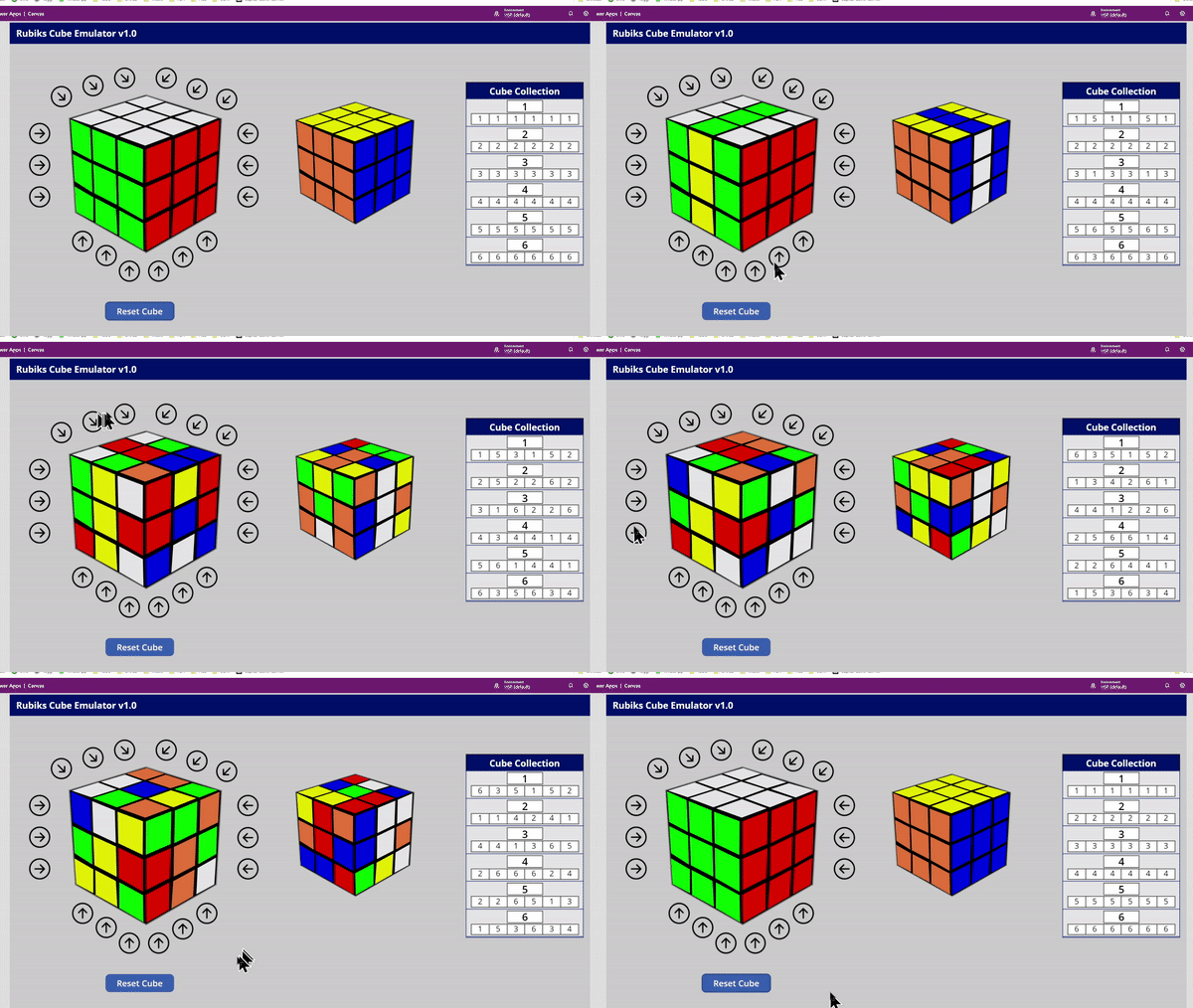
FUTURE ENHANCEMENTS
These are some possible enhancements I’ll likely work on in the next version:
1. Animating the faces as they move. Possibly using Blender to create a 3D cube (I have experience in 3D modelling and rendering – see my Stills and Videos). Exporting each frame to SVG, adding piece colours, and then displaying it in Power Apps. There is quite a lot of work involved with this, and I’m unsure how feasible it will be to do in real time in Power Apps.
2. Solving a cube from a scrambled state. It’s unclear how this would be done but will enjoy investigating it.
3. Using a physical cube connected to the app. There is a bluetooth cube available from here. (Thanks to Andrew Rimell for spotting this).
FINAL THOUGHTS
I’m very excited for the future of Power Apps – it really is limited only by your imagination. I hope you enjoyed reading this, and look forward to any comments.
Cover Photo by Jadson Thomas from Pexels
We made our 2nd trip to Gran Canaria this year, our first was back in 2012 when didn’t do much travelling.
This year I wanted to explore the island so hired a scooter for 1 day. I rented a Piaggio Beverly 300cc scooter from Motos Tivoli (a highly recommended company) which was ideal.
The roads and views in Gran Canaria are quite amazing. The route I planned avoided the East of the island as it is quite busy around that way.
Here’s a short highlight video I made of my ride – it’s in 4K. The full video is 4 hours in total..
Here are some photos I took around the island whilst we were there:














 HARJIT SAMRAS BLOG